
Android how-to
Free Up Storage on Android: Duplicates, Screenshots & Big Videos
Your phone says storage is almost full? Here is a calm, step-by-step way to find out what takes up the space on Android and remove what you no longer need, without losing the photos that matter.
A full phone usually doesn't happen overnight. It creeps up: a few hundred screenshots here, some long videos there, chat groups that save every meme. The good news is that most of that space is easy to find once you know where to look. This guide walks you through the built-in tools first and then shows how a gallery app can help with the photo part.
Step 1: Check what is using your storage
Before you delete anything, find out where the space actually goes. On most Android phones you will find a storage overview in the Settings app, usually under a section called Storage. The exact name and layout depend on the manufacturer and Android version.
The overview typically splits your storage into categories such as:
- Images and videos
- Apps (including their data)
- Audio and documents
- System files
For most people, photos and videos are the biggest block by far. That is good to know, because it tells you where cleaning up will make the biggest difference.
Step 2: Clear app cache and old downloads
Apps store temporary files, called cache, to load faster. Over time this can grow to a surprising size, especially for browsers, streaming apps and social apps.
- Open Settings and go to the list of apps.
- Pick an app with a large size.
- Open its storage page and tap Clear cache.
Be careful not to confuse this with Clear storage or Clear data. That option resets the app completely and can remove logins, settings and offline downloads.
While you are at it, open your Downloads folder in a file manager. PDFs, installation files and attachments you opened once tend to pile up there and are usually safe to remove after a quick look.
Step 3: Clean up chat media
Messaging apps like WhatsApp can save every photo, video, voice note and sticker you receive. In busy group chats, that adds up quickly. Most messaging apps have their own storage overview in their settings, where you can review large files and choose which chats save media automatically.
Turning off automatic media saving for big groups is one of the simplest ways to keep your storage from filling up again.
Step 4: Delete screenshots, duplicates and big videos
Now for the largest category. Three groups are worth checking in particular:
| What to look for | Why it takes space | What to do |
|---|---|---|
| Screenshots | Saved quickly, rarely deleted | Keep what you still need, remove the rest |
| Similar photos and bursts | Five shots of the same moment | Keep the sharpest one |
| Big videos | A few minutes can take hundreds of MB | Keep the important ones, back them up or remove them |
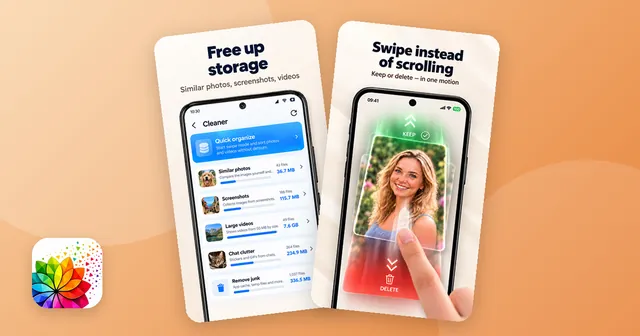
Going through these by hand in a normal gallery is slow, because they are mixed in with everything else. This is the reason I added an overview to my own app, Photo Gallery: Albums & Vault. Its "Your gallery at a glance" screen groups screenshots, videos of 50 MB and more, similar photos and WhatsApp stickers and GIFs, and shows how much space each group takes. Similar photos are found by comparing the image content, so near-identical shots and burst photos end up together.
A few honest details:
- Checking similar photos one by one is free. Removing a whole set of similar photos in one go is part of Pro.
- WhatsApp stickers and GIFs need one-time access to the folder. Stickers you remove there do not go to the trash and cannot be restored, so look before you delete.
- Everything happens on the phone. The app works without an account and does not upload your photos to a cloud.
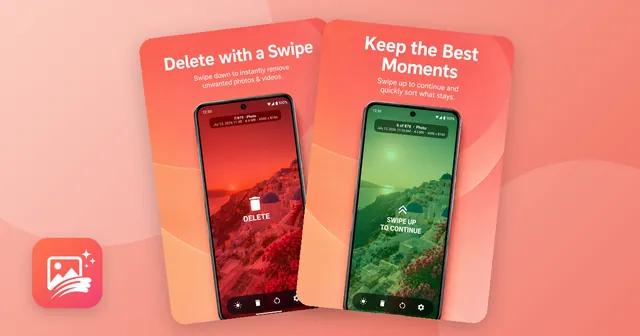
If you would rather go through your whole gallery photo by photo, swiping is often the most relaxed way. With UpNDown: Gallery Cleaner you see each photo or video full screen, swipe down to move it to the trash and swipe up to keep it. It also shows the file size and resolution, which helps you spot the large ones. I wrote more about this approach in my guide on how to clean up your photo gallery.
Step 5: Empty the trash (the step everyone forgets)
When I tested storage cleanups, the most common surprise was this: you delete hundreds of photos, and the free space barely moves. The reason is the trash. Most gallery apps move removed files into a trash folder first, so you can change your mind.
That is useful, but the space only comes back once the trash is empty. Check every place that keeps a trash:
- The trash in your gallery or photo app
- The trash in your file manager, if it has one
- The trash in any cleaning app you used
In Photo Gallery, the trash only contains files you removed inside the app. You can restore them at any time or let the app empty the trash automatically after 30 days.
Step 6: Use Google Photos "Free up space" carefully
If you back up your photos with Google Photos, it offers a feature called "Free up space". It removes the copies on your phone that are already backed up to your Google account.
That can free a lot of storage, but only use it when your backup is really finished. Open Google Photos, check that the backup is complete and that nothing is still waiting to upload, and only then use the feature. If you are unsure, the Google Photos help pages explain how backup works on your device.
Keeping your storage under control
Once your phone has room again, a few habits help keep it that way:
- Delete screenshots right after you no longer need them.
- Turn off automatic media saving in large chat groups.
- After taking a series of photos, keep the sharpest one and remove the rest the same day.
- Look at your storage overview once a month.
- Empty the trash after each bigger cleanup.
If you also keep private photos hidden on your phone, take a look at how photo vaults work on Android before you move to a new phone, so nothing gets left behind. And if you want one place for the overview, similar photos and big videos, Photo Gallery: Albums & Vault is free to try on Android.

The app from this article
Photo and video gallery with albums, a PIN vault, editor and storage overview.
FAQ
What takes up the most storage on an Android phone?
Usually photos and videos, followed by apps with large caches and chat media. Your storage settings show a breakdown by category, so start there.
How do I delete duplicate photos on Android?
Look for near-identical shots and burst photos, compare them side by side and keep the sharpest one. A gallery app that groups similar photos, like Photo Gallery: Albums & Vault, makes this faster.
Is it safe to clear app cache on Android?
Clearing the cache removes temporary files, and the app rebuilds them when needed. Clearing app data or storage is different: it resets the app and can delete logins or offline content.
Why is my storage still full after deleting photos?
Many gallery apps move deleted files into a trash folder first. The space only becomes free once the trash is emptied or the files are removed automatically after the waiting period.
Should I use “Free up space” in Google Photos?
Only if your backup is really complete. The feature removes the copies on your phone that are already backed up, so check in Google Photos that every item has finished uploading first.
Keep reading
Android how-to
How to Clean Up Your Photo Gallery on Android: Swipe to Sort
Clean up your photo gallery on Android step by step: remove screenshots, similar shots and big videos, then sort the rest by swiping, with a trash to undo.
Oct 14, 2026
Android how-to
How to Hide Photos on Android: Vault Apps and Built-In Options Explained
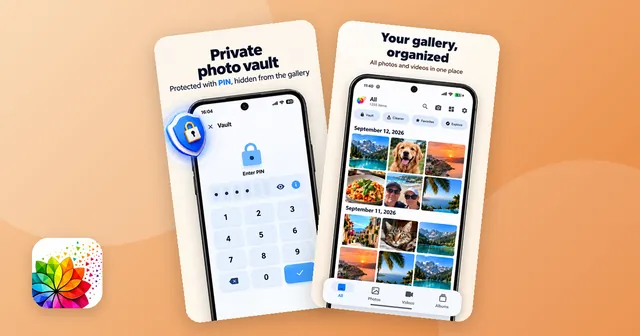
How to hide photos on Android: Google Photos Locked Folder, Samsung Secure Folder, the .nomedia trick and gallery apps with a PIN vault compared.
Oct 14, 2026