
Android how-to
How to Clean Up Your Photo Gallery on Android: Swipe to Sort
Thousands of photos, half of them screenshots and blurry shots? Here is a calm, step-by-step way to clean up your phone gallery without losing the pictures you care about.
Most phone galleries do not get messy in a single day. It happens one screenshot, one burst shot and one forwarded video at a time, until scrolling back to last summer takes a while. The good news: you do not have to clean everything at once. This guide works from the quick wins to the slow part, and shows how swiping through photos one by one makes that slow part feel a lot less like a chore.
Why a gallery gets out of hand
A typical Android gallery mixes very different things:
- photos you took on purpose,
- screenshots you needed for five minutes,
- near-identical shots, because you pressed the button three times,
- images and videos saved automatically from messenger chats,
- long videos that nobody watches again.
The first group is what you want to keep. Most of the clutter sits in the other four, and each of them is easier to clean with a slightly different approach.
Before you delete anything: make a backup
Deleting photos is the one cleanup step that can really hurt. Before you start, make sure the pictures you care about also exist somewhere else: a cloud backup you already use, a computer or an external drive. If you rely on a cloud backup, check that it is actually finished before you remove anything from your phone. The Google Photos Help Center explains how backups work in Google Photos.
Step 1: Start with the easy wins
These categories need little thought:
- Screenshots. Most gallery apps show a separate Screenshots album. Old boarding passes, chat screenshots, shopping lists: you rarely need them twice.
- Downloads. Memes and images saved from websites often land in their own folder.
- Messenger media. Chat apps can save every photo and video you receive. Look through that folder and, if your messenger offers the option, turn off automatic saving of media.
Deleting a whole screenshot album in one go is tempting. Skim through it first, though, because sometimes a screenshot is the only copy of a ticket or a receipt.
Step 2: Similar shots and bursts
Burst shots and “one more, just in case” photos often take up more space than you would expect. Open a day with many pictures, compare the near-identical ones and keep the sharpest. Some gallery apps can group similar photos for you, which saves you the hunting. For a closer look at duplicates and other large files, read the guide on freeing up storage on Android.
Step 3: Big videos
A handful of long videos can take up as much space as thousands of photos. If your gallery can sort videos by size, use it, or open the storage section in your phone settings. For each big file, ask yourself one question: will I ever watch this again? A shaky concert clip where you cannot see the stage can probably go.
Step 4: Sort the rest by swiping
After the easy wins, what remains is the actual work: years of photos where each picture needs a quick yes or no. A grid of tiny thumbnails is tiring for this. You cannot really see the photo, and ticking dozens of checkboxes is easy to get wrong.
Showing one photo at a time in full screen works differently. You see each picture properly, decide and move on. That is the idea behind UpNDown: Gallery Cleaner, a small Android app I built for exactly this step.
How it works in UpNDown
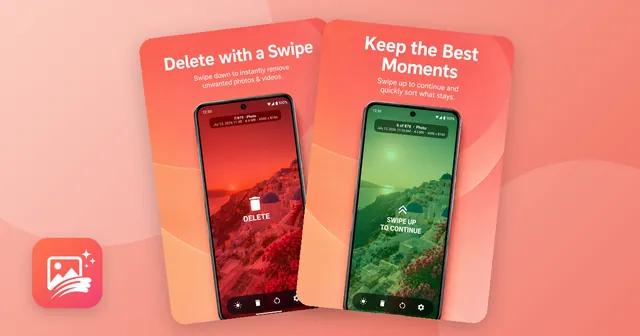
- Open the app. It shows your photos and videos in chronological order, one at a time, in full screen.
- Swipe down to delete a picture. It goes to the trash, not straight into nothing.
- Swipe up to keep it and move on to the next one.
- At the top you see where you are, for example “24/878”, plus the date, file size and resolution of the current file.
- Stop whenever you like. The app remembers your last position automatically, so the next round starts where you left off.
When I designed the app, I made the trash the default for a reason: when you swipe through hundreds of pictures, you will swipe the wrong way now and then. With a trash in between, a mistake costs you one tap instead of a lost photo.
Everything happens on your phone. UpNDown works 100 % locally, nothing is uploaded to a cloud, and the app needs no registration.
Do not forget the trash
Many people delete hundreds of photos and then wonder why the free storage barely changed. The reason is usually a trash folder. Most gallery apps keep removed files there for a while, and only emptying it actually frees the space.
In UpNDown you open the trash, restore anything you deleted by mistake and then remove the rest permanently. Do the last step only when you are sure, because permanently deleted files are gone.
| What to clean | Where to look | Tip |
|---|---|---|
| Screenshots | Screenshots album | Skim for tickets and receipts first |
| Messenger media | Messenger folder in the gallery | Turn off automatic saving |
| Similar shots | Days with many photos | Keep the sharpest one |
| Big videos | Video view or storage settings | Ask if you will watch it again |
| Everything else | Full-screen swiping | Small rounds, check the trash |
A routine that keeps the gallery tidy
Cleaning up once feels good. Keeping the gallery tidy is easier with a small routine:
- Weekly: delete the screenshots you no longer need.
- Monthly: swipe through the photos of the past month while they are still fresh in your mind.
- Before a backup or a new phone: empty the trash, so you do not carry the clutter along.
Short sessions work better than one long marathon. Ten minutes on the couch, then stop. Because UpNDown picks up exactly where you left off, you can split even a very large gallery into many small rounds without losing track.
If you would like to try the swipe method, UpNDown for Android is free with ads. A one-time purchase removes the ads, and there is no subscription.

The app from this article
Swipe down to delete, up to keep – sort a full camera roll with a trash you can restore from.
FAQ
What is the easiest way to clean up my photo gallery?
Start with screenshots, messenger media and big videos, then go through the remaining photos one by one. Looking at full-screen photos is easier on the eyes than ticking boxes in a grid of thumbnails.
Are photos deleted with a gallery cleaner app gone for good?
That depends on the app. UpNDown moves deleted photos to a trash first, where you can restore them or remove them permanently.
Why is my phone storage still full after deleting photos?
Deleted photos often sit in a trash folder until it is emptied. Empty the trash in your gallery app and in every other app you used for deleting.
Do gallery cleaner apps upload my photos?
Some do, so check before you install. UpNDown works completely on your phone, with no cloud upload and no registration in the app.
Should I back up my photos before cleaning up the gallery?
Yes. Make sure the photos you care about exist in a second place, and check that a cloud backup is really finished before you delete anything.
Keep reading
Android how-to
Free Up Storage on Android: Duplicates, Screenshots & Big Videos
Free up storage on Android step by step: clear app cache and downloads, delete duplicate photos, screenshots and big videos, and empty the trash.
Oct 14, 2026
Android how-to
How to Hide Photos on Android: Vault Apps and Built-In Options Explained
How to hide photos on Android: Google Photos Locked Folder, Samsung Secure Folder, the .nomedia trick and gallery apps with a PIN vault compared.
Oct 14, 2026