
Android how-to
How to Sign a PDF on Android Without Printing or Scanning
A contract, a rental form or a permission slip arrives as a PDF. Here is how to fill it in and sign it on your Android phone, and what a drawn signature can and cannot do legally.
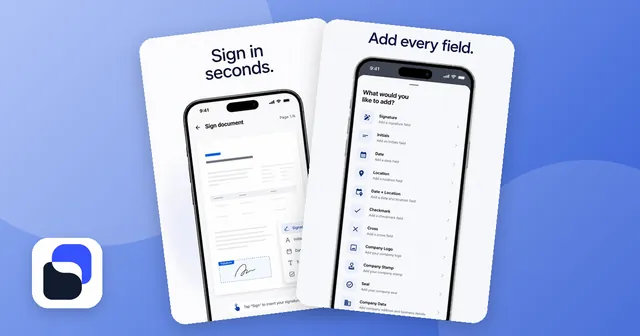
Print, sign, scan, email back: on an Android phone you can skip the printer entirely. This guide covers the options that may already be on your phone, then a dedicated app, and ends with the legal part many guides leave out.
What you need before you start
- The PDF itself, saved on your phone or opened from an email or chat attachment.
- A few quiet minutes. A signature drawn on a moving bus rarely looks like yours.
- Optional: a stylus for a slightly cleaner line. A fingertip works fine.
If the document comes from a company that uses an e-signature platform, check the email first. In that case you usually tap the link in the message and sign right in the browser, no extra app needed. Everything below is for the more common case: someone simply sends you a PDF to sign.
Option 1: Check the tools already on your phone
Depending on your phone maker and app versions, the PDF viewer you already have may let you fill in form fields or draw on a document. Google Drive, for example, opens PDFs, and some Android phones come with a viewer that offers a pen or markup tool. Open the PDF, look for an edit, pen or “fill out” option and try it on a copy first.
For a one-off document, that is often enough. The limits show up quickly, though:
- You usually have to draw your signature again for every document.
- Markup pens are made for scribbling notes, so placing a neat signature exactly on the line can be fiddly.
- Some viewers save annotations so that they look different in another app.
Option 2: Use a sign PDF app
If you sign forms, contracts or confirmations regularly, an app built for this job takes the repetition away. As an example, here is the workflow in Sign PDF: Fill & Scan Docs, the Android app I build and maintain. Other apps follow a similar pattern.
Step by step
- Open the app and pick the PDF from your phone storage, your downloads or an attachment you shared to the app.
- Draw your signature once with your finger or a stylus and save it. Add your initials too if your contracts ask for them on every page.
- Tap where the signature belongs, drag it onto the line and resize it until it fits.
- Add the rest: date, name, place, a checkmark or a short free text, wherever the document needs it.
- Scroll through all pages. Multi-page contracts often hide a second signature line on the last page.
- Export the signed PDF, then share it by email or chat, or save it to your files.
When I built the editor, one rule mattered more than any other: what you see while editing is exactly what ends up in the final PDF. Nothing shifts after export.
Filling in PDF forms on a small screen
Many PDFs are forms. On a phone the challenge is size, not complexity. Three habits help:
- Zoom in before you type. Tiny fields are easy to miss with a thumb.
- Fill in everything first, sign last. That way you have read the whole document before you commit to it.
- Check the boxes twice. A checkmark next to the wrong option is the most common mistake on forms.
In Sign PDF you tap a field and type straight into it, and you can zoom in wherever the print is small. Company documents can also get a logo, a stamp or a seal.
Signing a paper document: scan it first
If the contract is on paper but you want to send a PDF back:
- Put the page on a dark, even surface with good light.
- Scan it with your phone camera. Automatic edge detection finds the page borders for you.
- Let the app straighten slanted pages. The angle is corrected without changing the content.
- Add the remaining pages so the whole contract ends up in one PDF.
- Sign the scan like any other PDF.
The same app also handles the chores around signing: merging several PDFs into one without a watermark, splitting a file or extracting single pages, turning JPG or PNG images into a PDF with page margins in millimeters, saving PDF pages as images, making a large PDF smaller, and protecting a PDF with a password and permissions for printing, copying or editing.
Letting someone else sign on your phone
A contractor finishes a job, or a tenant signs a handover report. Instead of sending them a file, you mark the signature fields, hand over your phone, and the app guides the other person field by field until everything is signed. When they give the phone back, the finished PDF is ready.
Is a drawn signature legally valid?
This is the part worth being honest about. A signature you draw on a screen is a simple electronic signature. For many everyday documents, such as order confirmations, delivery notes, sign-up forms or agreements between private people, that is often accepted when both sides agree.
It is not a qualified electronic signature (QES). Depending on your country and the type of document, some contracts legally require a handwritten signature on paper or a qualified electronic signature, and a drawn signature is not enough for those. If you are unsure, ask the person or company that sent you the document which form they accept. This is general information, not legal advice.
| Method | Effort | Typical use |
|---|---|---|
| Print and sign by hand | High | Documents required in original on paper |
| Built-in PDF viewer | Low | Occasional simple documents |
| Sign PDF app | Low | Regular forms, contracts and scans |
| Qualified e-signature service | Medium | Contracts that require a QES |
Privacy: where does your document go?
Contracts contain addresses, bank details and signatures. Before you install any PDF app, check whether it uploads your files. Sign PDF works completely offline, even in airplane mode, and the app needs no account. Documents stay in the app's private storage on your phone. You can add an app lock with biometric unlock or face recognition, and optionally attach place and date to a signature, with the location staying on your device. The app shows no ads and only collects anonymous usage statistics, never document contents.
If you also want to keep private pictures away from curious eyes, have a look at how to hide photos on Android.
Quick checklist
- Read the whole PDF before you sign.
- Fill in all fields, then place your signature and initials.
- Check every page, especially the last one.
- Ask whether a simple electronic signature is accepted.
- Keep a copy of the signed file.
If you want one tool for signing, form filling and scanning, take a look at Sign PDF for Android. It is free to download with optional in-app purchases and is available in 11 languages.

The app from this article
Sign and fill PDF forms, scan paper to PDF, merge, split and compress – offline.
FAQ
Can I sign a PDF on Android for free?
Yes. Depending on your phone, the PDF viewer you already have may let you draw on a document. Apps like Sign PDF are free to download and let you save your signature once and reuse it.
How do I fill out a PDF form on my Android phone?
Open the PDF in an app that supports form filling, tap a field and type. Zoom in on small fields, and sign only after everything else is filled in.
Is a signature drawn on a phone legally binding?
A drawn signature is a simple electronic signature. It is often accepted for everyday documents, but contracts that legally require a handwritten signature on paper or a qualified electronic signature need that form. Ask the sender if you are unsure.
Can I sign a PDF on my phone without an internet connection?
Yes, with an app that works offline. Sign PDF runs completely offline, even in airplane mode, and keeps your documents in the app's private storage on your phone.
How do I sign a paper document and send it back as a PDF?
Scan the pages with your phone camera, let the app straighten them and combine them into one PDF. Then place your signature and share the file.
Keep reading
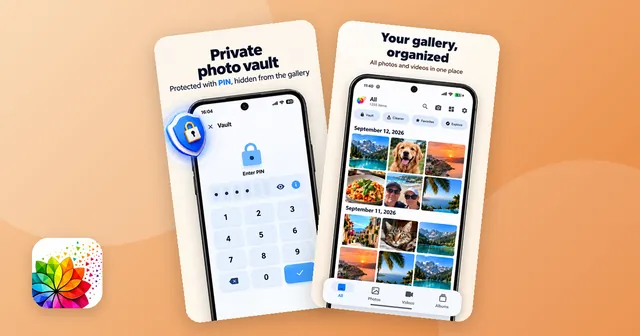
Android how-to
How to Hide Photos on Android: Vault Apps and Built-In Options Explained
How to hide photos on Android: Google Photos Locked Folder, Samsung Secure Folder, the .nomedia trick and gallery apps with a PIN vault compared.
Oct 14, 2026
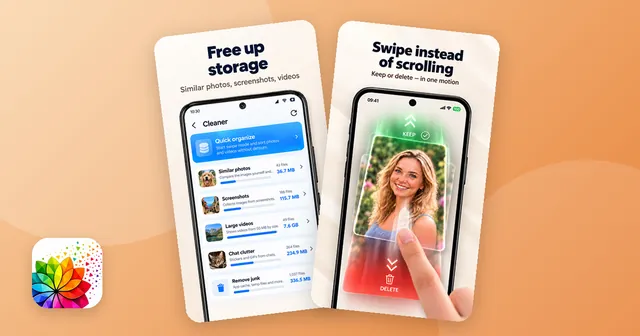
Android how-to
Free Up Storage on Android: Duplicates, Screenshots & Big Videos
Free up storage on Android step by step: clear app cache and downloads, delete duplicate photos, screenshots and big videos, and empty the trash.
Oct 14, 2026